 LocalShot
Your captures never leave your computer.
LocalShot captures your screen, annotates it, blurs it and records it as video. No account, no cloud, nothing sent to anyone.
 Coming soon to the Chrome Web StoreSee how it works
The extension is being reviewed by Google.
Where do your captures go?
Many online capture tools upload every image to their servers. LocalShot does the opposite.
| Typical online tools | LocalShot | |
|---|---|---|
| Account required | Yes, with your email | No |
| Where your captures live | On their servers | In your browser |
| Who can access them | The vendor and its providers | Only you |
| Analytics and tracking | Often | None |
| To share a link | Their cloud | Your own server, encrypted if you like |
Three moves and you’re done
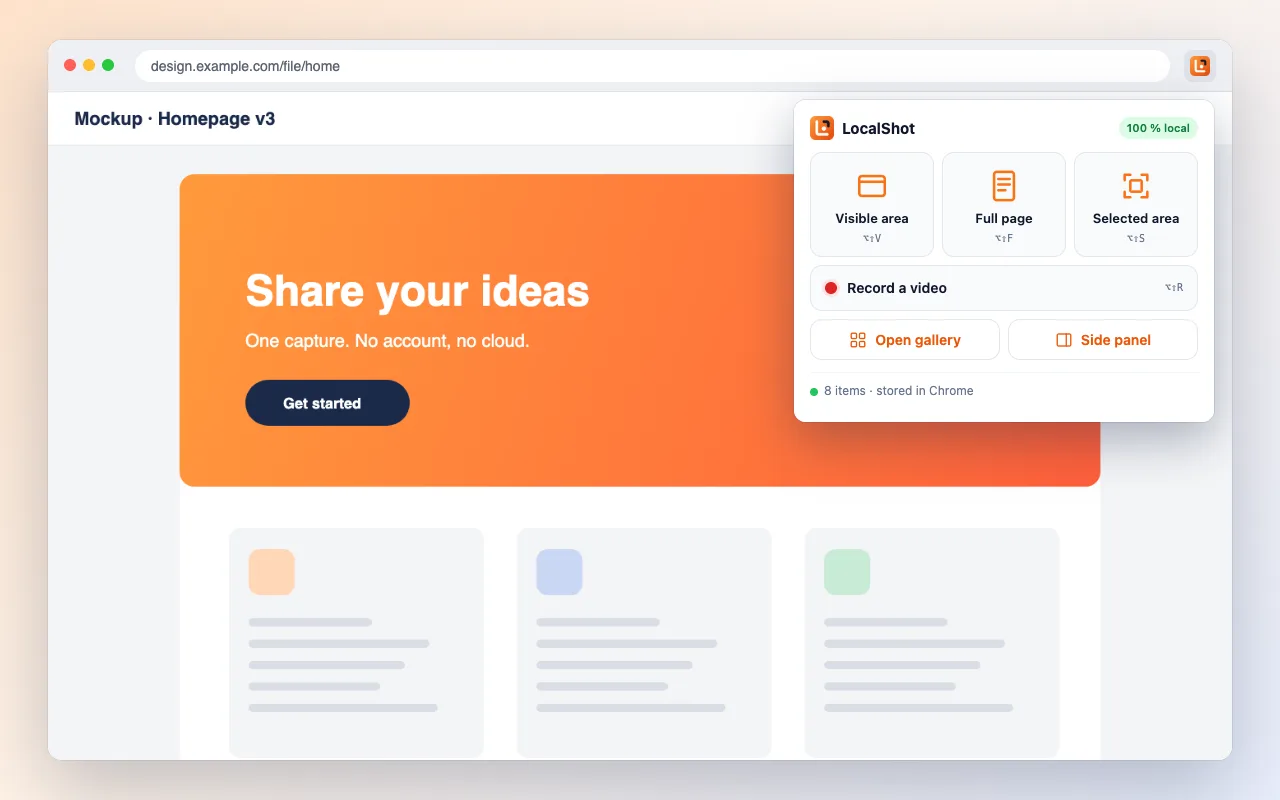
Capture
What you see, the full page scrolled automatically, or just the area you draw with the mouse.
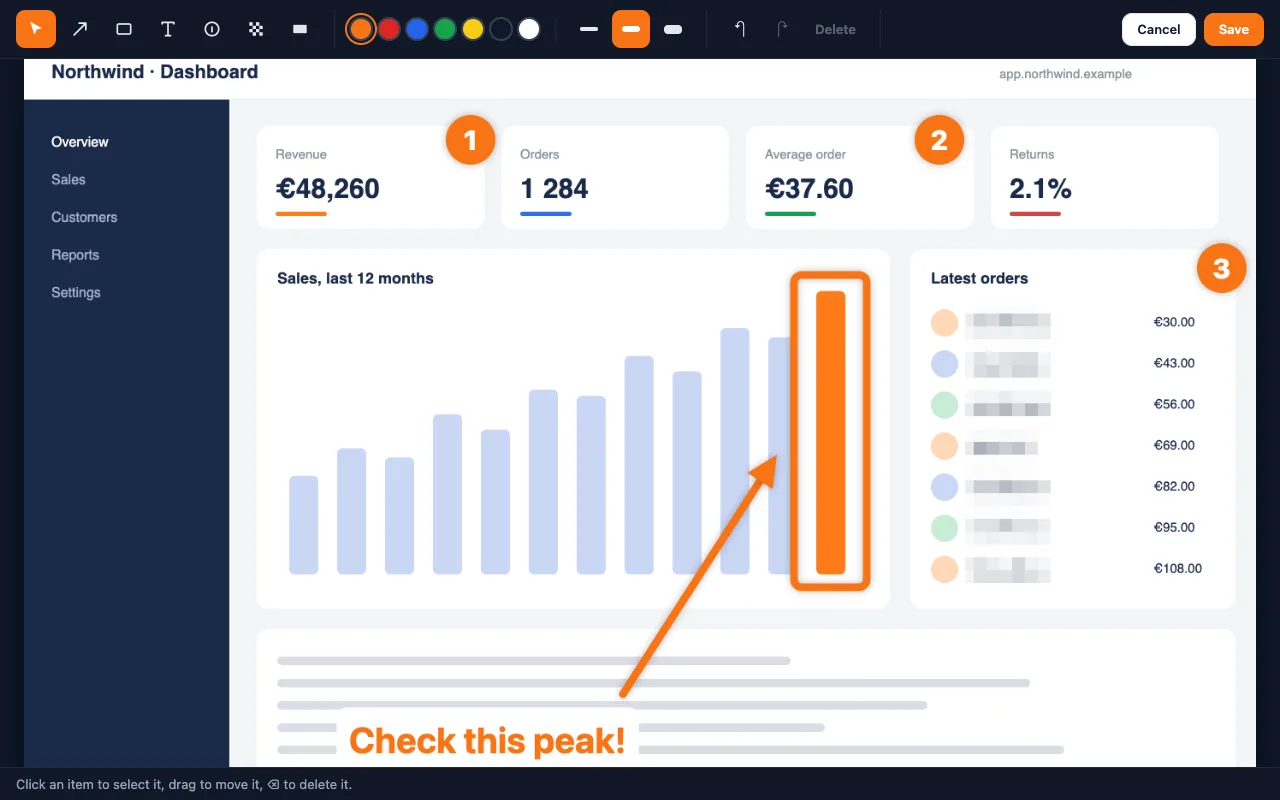
Annotate and blur
Arrows, boxes, text, numbered steps. Blur is permanent in the image: names, emails and amounts can’t be guessed.
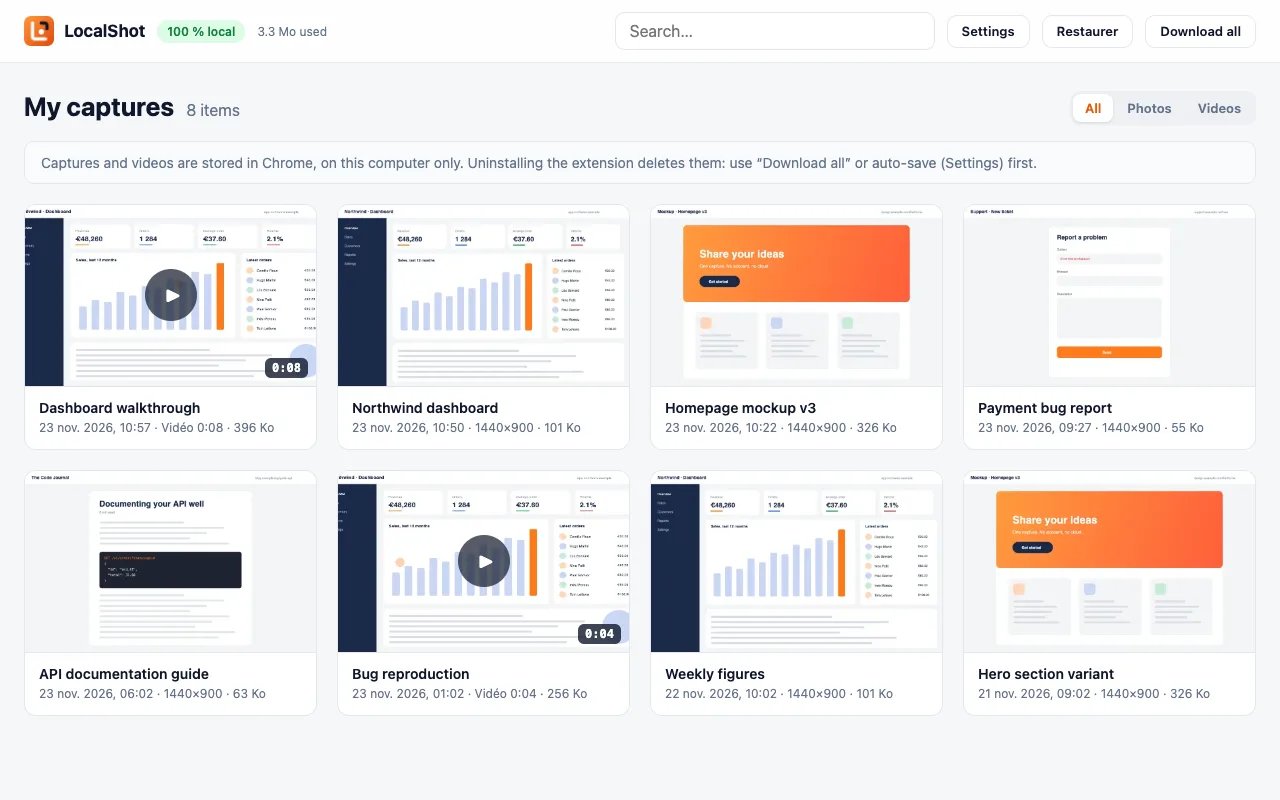
Keep or share
Everything goes into the gallery and, if you like, into the folder of your choice. Copy the image in one click and paste it anywhere.
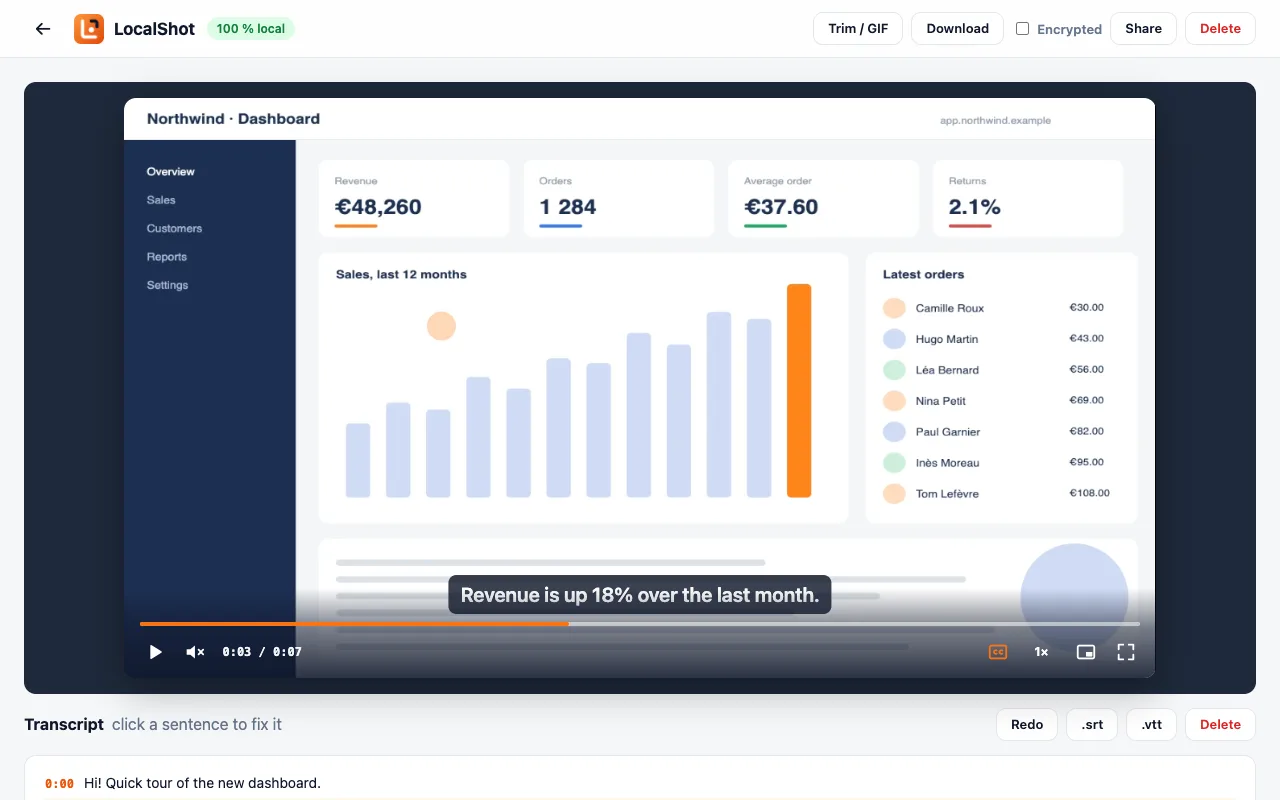
Show it in a video instead of three paragraphs
Record a tab, a window or the whole screen, with your voice and your face in a bubble. Perfect for a tutorial, a bug report or a quick walkthrough.
- Microphone, camera and tab audio
- Trim the video and export a GIF
- Automatic captions, if you want them
- MP4 that plays everywhere, iPhone included
All from the keyboard
- ⌥ ⇧ V : Visible area
- ⌥ ⇧ F : Full page
- ⌥ ⇧ S : Selected area
- ⌥ ⇧ R : Start or stop a video
On Windows, use Alt + Shift instead of ⌥ ⇧. Shortcuts can be changed in Chrome.
What LocalShot can do, and what it never will
LocalShot can
- Capture the tab you click on
- Save your files to the folder you choose
- Send a link to your server, when you click Share
LocalShot cannot
- Read your pages in the background
- Send anything to its publisher
- Show ads or measure how you use it
Your screen, your files.
Free, no account, and open source: anyone can read the code.
Coming soon to the Chrome Web Store